

Installation guide Windows 11 Professional
Installation files
Windows 11 — Pro and Homefrom Microsoft
One file for both editions: Microsoft's official Media Creation Tool downloads Windows 11 for Pro and Home. Which edition gets installed is decided by your licence key at activation — so there is nothing for you to choose.
Download from MicrosoftFor this version we send you the installation file directly — write to us with your order number and it goes out the same day.
Request the fileSYSTEM REQUIREMENTS
Read this very carefully
These are the minimum system requirements for installing Windows 11 on a PC. If your device does not meet these requirements, you may not be able to install Windows 11.
You can download the application PC Health Check that will tell you if your device supports Windows 11.
| Processor | 1 gigahertz (GHz) or faster with 2 or more cores on a compatible 64-bit processor or System on a Chip (SoC). |
| RAM | 4 gigabytes (GB). |
| Storage | 64 GB or larger storage device Note: See below under “More information on storage space to keep Windows 11 up-to-date” for more details. |
| System firmware | UEFI, Secure Boot capable. |
| TPM | Trusted Platform Module (TPM) version 2.0. Check here for instructions on how your PC might be enabled to meet this requirement. |
| Graphics card | Compatible with DirectX 12 or later with WDDM 2.0 driver. |
| Display | High definition (720p) display that is greater than 9” diagonally, 8 bits per color channel. |
| Internet connection and Microsoft account | Windows 11 Home edition requires internet connectivity and a Microsoft account. Switching a device out of Windows 11 Home in S mode also requires internet connectivity. Learn more about S mode here.. For all Windows 11 editions, internet access is required to perform updates and to download and take advantage of some features. A Microsoft account is required for some features. |
WINDOWS VERSION
Make sure your Windows version matches the Windows version of the key.
CHECK CONNECTION
Verify that you have a stable Internet connection during installation. Please follow these steps for a successful activation.
ONLINE ACTIVATION
If you already have Windows 11 Pro installed, try online activation 2-3 times (if successful ignore the rest)
After installing the Operating System. Let’s go and right-click on My Computer and select the properties option and click on the Activate Windows option, then activate and enter the key provided.
INSTALLATION
NEW INSTALLATION:After downloading, burn the ISO file to DVD or save it to USB. Once you boot your PC / Laptop with the DVD / Pendrive the installation program will run. Follow the guided steps of the program to complete its installation.
After installing the Operating System. Let’s go and right-click on My Computer and select the properties option and click on the Activate Windows option, then activate and enter the key provided.
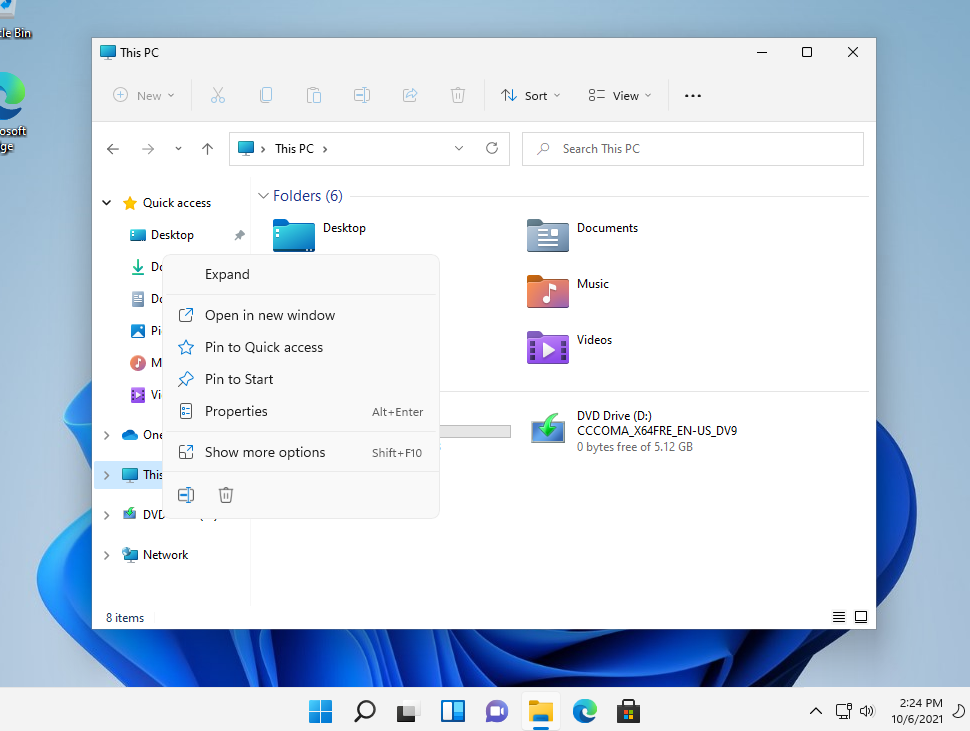
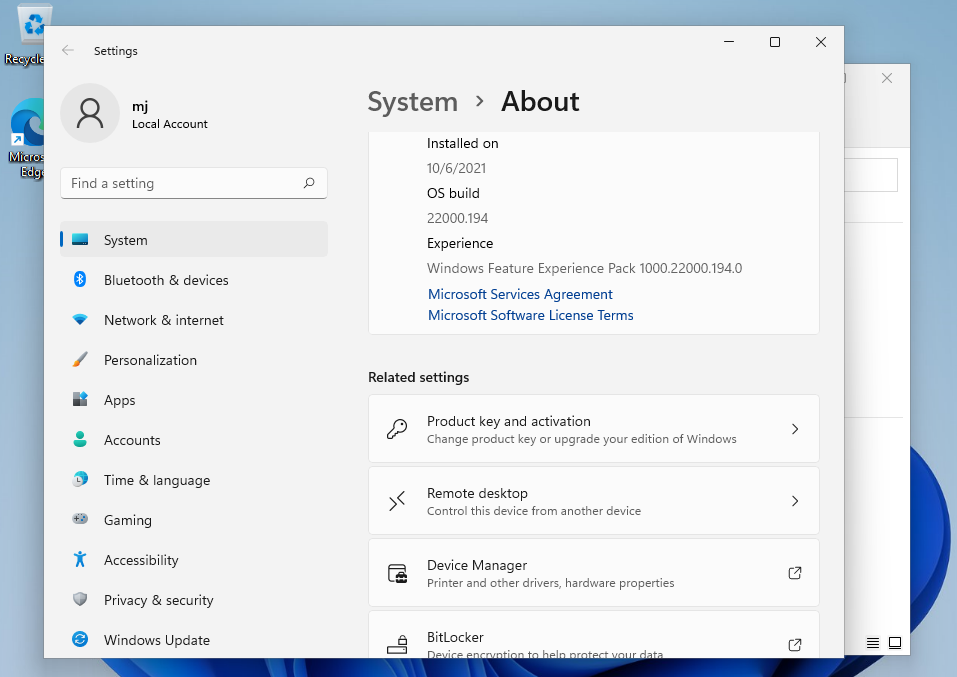
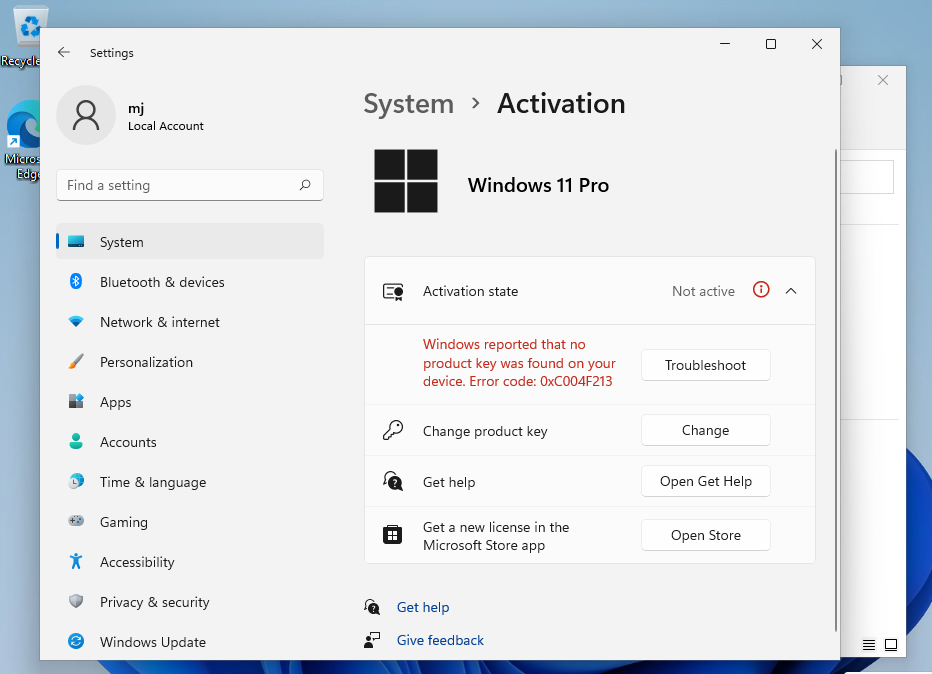
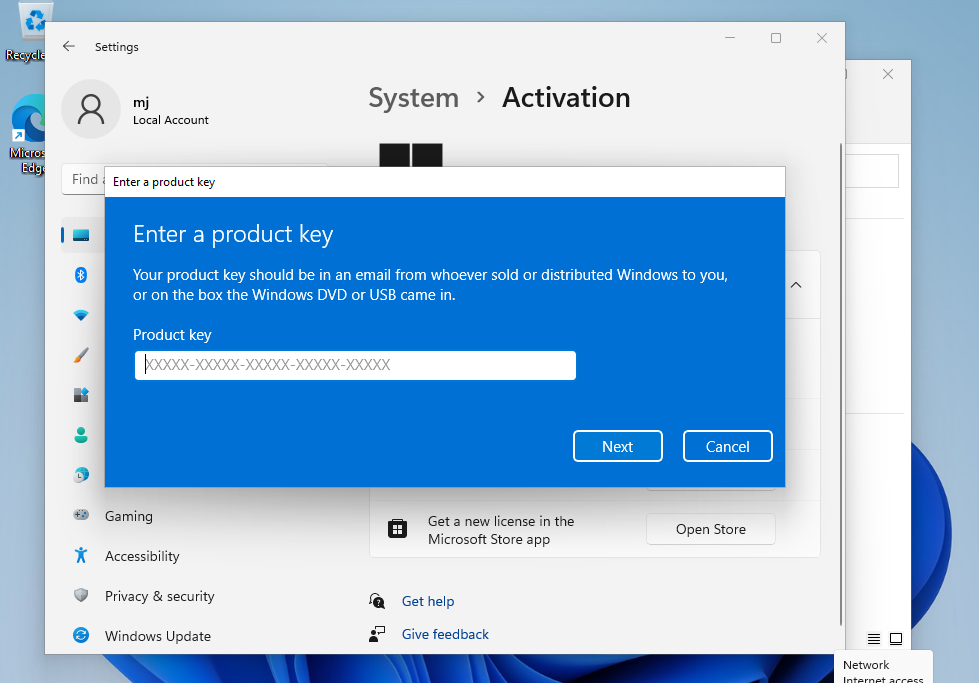
IF THE ONLINE ACTIVATION WAS NOT SUCCESSFUL
Activate your password by phone: to do this, select «Show other activation methods» -> «Next» -> «Automatic during Windows activation. Use the phone system ».
Choose your location and call one of the numbers shown.
- Activation through Microsoft’s central activation center:
- From the UK, please dial: 900 150 889
- Please try 2 or 3 times in case it doesn’t work right away.
- Activation computer does not always recognize input immediately
NOTE
Microsoft has gradually phased out support for some older products. Therefore, telephone activation is no longer possible. If you have any problems or questions during the Installation, please contact our 24/7 customer service.
Other guides
- Installation guide Windows Server 2022 Standard
- Installation guide Office 2010 Professional Plus 32 & 64 Bits
- Installation guide Office 2013 Professional Plus 32 & 64 Bits
- Installation guide Office 2016 Professional Plus 32 & 64 Bits
- Installation guide Office 2016 Standard 32 & 64 Bits
- Installation guide Office 2019 Professional Plus 32 & 64 Bits
- Installation guide Office 2019 Standard 32 & 64 Bits
- Installation guide Office 2021 Standard -32 & 64 Bits
- Installation guide Office 2024 Professional Plus
- Installation guide Office 2024 Standard
- Installation guide Office 2021 Professional Plus
- Installation guide Project 2016 Professional 32 & 64 Bits
- Installation guide Project 2019 Professional 32 & 64 Bits
- Installation guide Project 2021 Professional 32 & 64 Bits
- Installation guide Visio 2016 Professional 32 & 64 Bits
- Installation guide Visio 2019 Professional 32 & 64 Bits
- Installation guide Windows 10 Professional
- Installation guide Windows 7 Professional 32 & 64 Bits