

Installation guide Windows Server 2022 Standard
Installation files
Windows Server 2022from Microsoft
You download Windows Server 2022 directly from Microsoft. Microsoft provides the installation media through the Evaluation Center — your key turns it into the full version. If you need a hand with that, just write to us.
Download from MicrosoftFor this version we send you the installation file directly — write to us with your order number and it goes out the same day.
Request the fileSYSTEM REQUIREMENTS
- 1 gigahertz (GHz) or faster or 64-bit (x64) processor
- 2 gigabyte (GB) RAM
- 60 GB of available hard disk space
- DirectX 9 graphics device with WDDM 1.0 or higher driver
CHECK
Verify that you have a stable Internet connection during installation. Please follow these steps for a successful activation
STEP 1
If you already have a (installed) version of Windows Server 2019 Standard as a download or on USB / DVD, first try activating this version with our product key. Make sure your version of Windows matches the Windows version of the product key. Otherwise, or in case the installation doesn’t work, continue with point 2.
STEP 2 (DOWNLOAD ISO)
Download your version of Windows Server from the following link:
The ISO file is the version for a permanent installation on a PC
INSTALLATION INSTRUCTIONS
After downloading, burn the ISO file to DVD or save it to USB. Once you boot your PC / Laptop with the DVD / Pendrive the installation program will run. Follow the guided steps of the program to complete its installation.
This supplied Microsoft installation includes a 180-day trial.
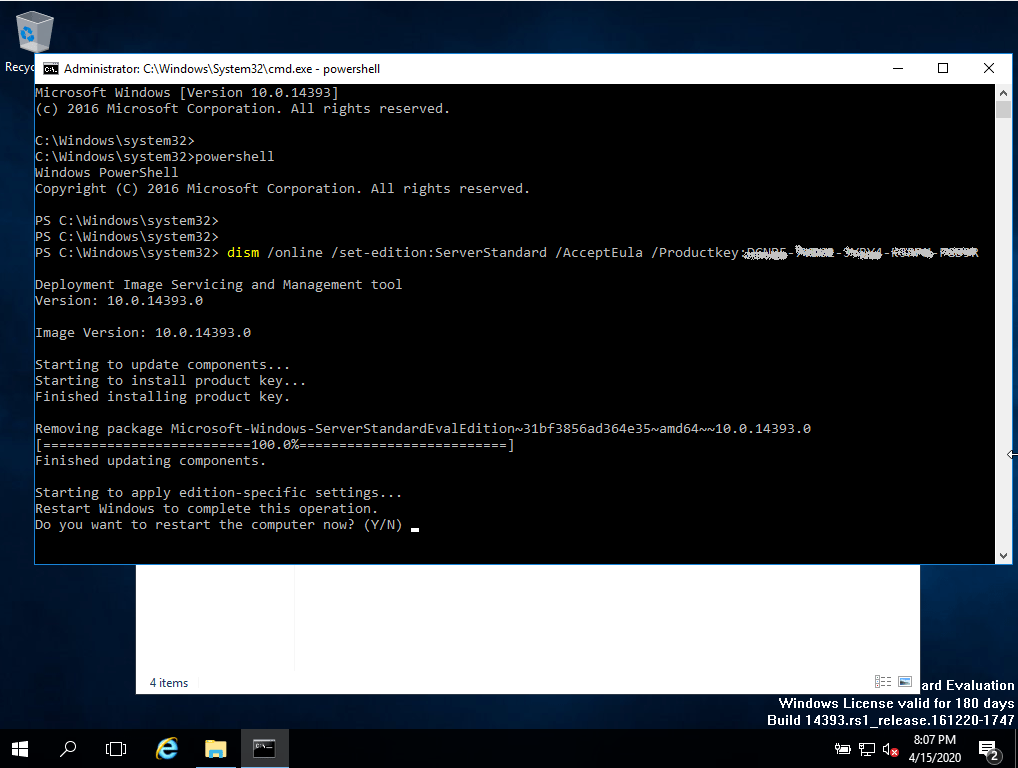
To convert to a full version, run following commands:
- Open PowerShell as Administrator.
- In the console, enter the following command:
DISM /Online /Set-Edition:ServerStandard /ProductKey:XXXXX-XXXXX-XXXXX-XXXXX-XXXXX /AcceptEULA
(Initially, we use a generic key for the trial version, later we will activate the full version) - It will ask you to restart your computer.
- Once rebooted, open PowerShell as administrator and run the following commands:
slmgr -ipk XXXXX-XXXXX-XXXXX-XXXXX-XXXXX
(Replace the “X’s” with the product key you purchased)slmgr -ato
- Activation will be successful.
Other guides
- Installation guide Office 2010 Professional Plus 32 & 64 Bits
- Installation guide Office 2013 Professional Plus 32 & 64 Bits
- Installation guide Office 2016 Professional Plus 32 & 64 Bits
- Installation guide Office 2016 Standard 32 & 64 Bits
- Installation guide Office 2019 Professional Plus 32 & 64 Bits
- Installation guide Office 2019 Standard 32 & 64 Bits
- Installation guide Office 2021 Standard -32 & 64 Bits
- Installation guide Office 2024 Professional Plus
- Installation guide Office 2024 Standard
- Installation guide Office 2021 Professional Plus
- Installation guide Project 2016 Professional 32 & 64 Bits
- Installation guide Project 2019 Professional 32 & 64 Bits
- Installation guide Project 2021 Professional 32 & 64 Bits
- Installation guide Visio 2016 Professional 32 & 64 Bits
- Installation guide Visio 2019 Professional 32 & 64 Bits
- Installation guide Windows 10 Professional
- Installation guide Windows 11 Professional
- Installation guide Windows 7 Professional 32 & 64 Bits